


A slow computer costs everybody precious minutes. Documents take ages to load, applications hang, and employees are left idle while the machine processes its thoughts.
If this happens at your organisation, slow PC troubleshooting in Dubai could begin with one basic question, what program is active in the background, and what purpose does it serve? This manual will help you discover the answer to this question, make changes when needed, and ask for professional assistance.
Table of Contents
ToggleWhy Is Your Office PC Slow?
Usually, there is no single reason behind the slow computer – the problem is a combination of various factors that build up over time.
Common reasons for slow Windows PCs
- Too many applications launching along with Windows
- Insufficient amount of RAM for tasks performed
- Old-fashioned HDD instead of a solid-state drive (SSD)
- Low free storage space
- Pending Windows or driver updates
- Malware infection
- CPU- or disc-consuming background programs and tasks
How background activity slows things down
Windows operating systems use a number of background processes and scheduled activities. These processes are beneficial. Some of them may be active at the wrong time, such as during work hours, and increase CPU usage on Windows computers that have an old or modest configuration.
What we should aim for is identifying the process that causes the issue and adjusting it, not shutting down all processes.
If a number of computers in your office have similar symptoms, then regular inspections through IT AMC services in Dubai will help you identify the issue before it becomes a problem for your team.
Check What Is Using Your Resources First.
Find the root cause before making any changes.
- Hit Ctrl + Shift + Esc to launch Task Manager.
- Go to the Processes tab.
- Sort the processes according to their CPU, memory, and disk usage.
- Identify the apps and services that continue to consume resources for a long time.
- Write them down. You’ll require the values to make comparisons.
It only takes two minutes and avoids the guesswork. If it’s an app causing the issues, solving that app’s problems is more useful than disabling Windows services.
Cannot identify the culprit? The IT Service Desk in Dubai can quickly detect why your computer is running slowly or freezing and give assistance with apps. It’s the slow computer support Dubai requires.
Step-by-Step: Review Background Services and Tasks in Windows
These steps help you review background activity safely. Review first, change only if you have a verified issue, and always note the original settings so you can undo a change.
Important: On business computers, test any change on one PC first. If your PCs are managed by an IT team or provider, check with them before changing services.
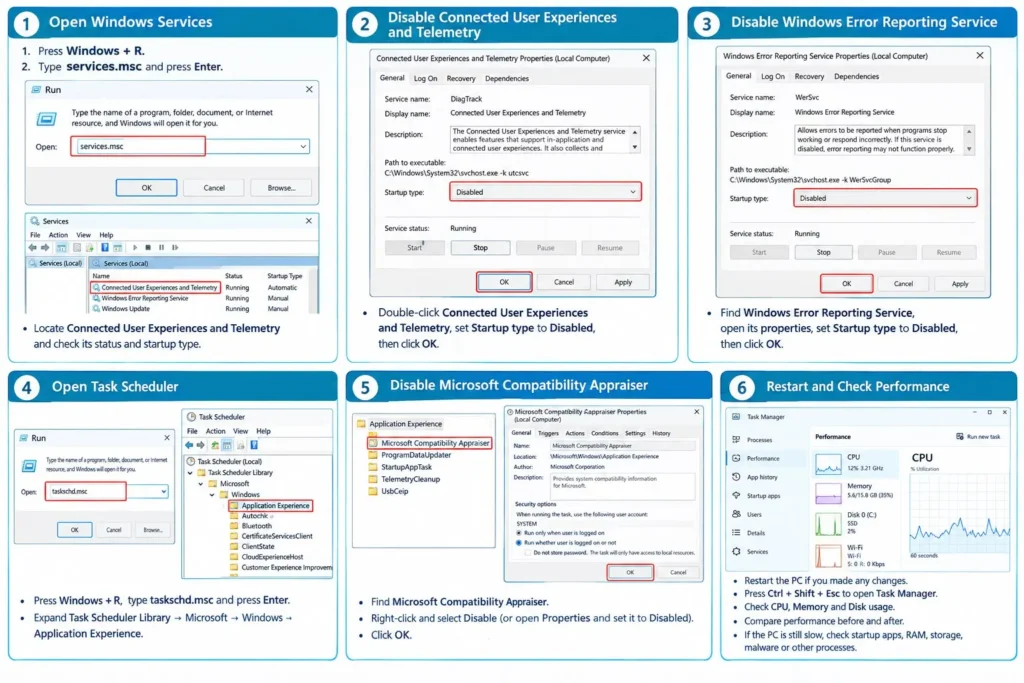
Step 1: Open Windows Services
- Press Windows + R.
- Type services.msc.
- Press Enter.
- Locate Connected User Experiences and Telemetry.
- Review its current status and startup type before making any changes.
This service handles certain Windows diagnostic and usage data. Disabling it can affect diagnostic functions, and it is not a guaranteed CPU optimisation.
Step 2: Review Windows Error Reporting Service
- In the same Services window, find Windows Error Reporting Service.
- Open its properties.
- Check whether it is currently running and how it is configured.
- Avoid disabling it by default on business computers.
This service collects information about certain Windows errors and crashes, which can help diagnose problems. Turning it off may reduce the diagnostic information available to support staff.
Step 3: Review Microsoft Compatibility Appraiser
- Press Windows + R.
- Type taskschd.msc and press Enter.
- Expand Task Scheduler Library.
- Open Microsoft → Windows → Application Experience.
- Find a Microsoft Compatibility Appraiser.
- Review its trigger and recent activity. If it is causing a verified performance issue, consider disabling the task after assessing the consequences.
This task supports Windows compatibility assessments and upgrade readiness. Disabling it can affect compatibility reporting, and it does not guarantee lower CPU usage.
Step 4: Restart and measure performance
- Restart the PC if you changed any settings.
- Press Ctrl + Shift + Esc to open Task Manager.
- Check CPU, memory, and disc usage.
- Compare performance before and after, using similar workloads.
- If the PC is still slow, look at startup apps, insufficient RAM, storage performance, malware, or other processes using resources.
Some businesses hand this kind of review to an outside provider. For an example of how providers describe this support, see IT AMC Dubai.
Reduce Startup Apps in Windows 11
If your goal is to disable background programmes on Windows 11, disabling startup programmes is usually the way to go.
- Open Task Manager and switch to the Startup Programs tab.
- See the column for Startup Impact.
- Right-click unnecessary apps during login and click Disable.
- Restart the computer and see how long it takes before the computer is ready.
Microsoft provides instructions on how to do that and what startup impact means in the section on configuring startup applications in Windows. Disabling a startup programme does not remove it. It can be enabled at any point in time.
Quick Comparison: What Happens If You Disable These Items?
Item | What it does | Possible downside of disabling | Will it fix a slow PC? |
Connected User Experiences and Telemetry | Handles certain Windows diagnostic and usage data | Can affect diagnostic functions | Not guaranteed |
Windows Error Reporting Service | Collects information about Windows errors and crashes | Less diagnostic data for support staff | Not guaranteed; avoid disabling by default on business PCs |
Microsoft Compatibility Appraiser | Supports compatibility assessments and upgrade readiness | Can affect compatibility reporting | Not guaranteed |
Unneeded startup apps | Launch automatically at sign-in | You may need to open the app manually. | Often helps with slow startup |
When to Call for Business IT Support in Dubai
Some problems go beyond a settings change. Contact a professional if:
- The same PCs slow down again after you fix them.
- Many computers in the office are affected at once.
- You see random freezes, crashes, or blue screens.
- You suspect malware.
- Your team spends more time fixing PCs than doing their work.
DIY fix vs. professional support
DIY troubleshooting | Professional business IT support | |
Best for | One or two PCs, simple causes | Many PCs, repeat issues, unclear causes |
Cost | Staff time | Service fee or contract |
Risk | Wrong setting changes | Lower, with documented changes |
Long-term prevention | Limited | Scheduled checks and reporting |
Larger teams may also look at managed services. This overview of IT managed services in Dubai explains that option.
If slow PCs keep coming back, a planned approach such as an IT annual maintenance contract in Dubai helps keep devices updated, monitored, and checked before they affect staff.
Conclusion
Good slow PC troubleshooting in Dubai starts with measuring, not guessing. Check Task Manager, review services and tasks carefully, trim startup apps, and compare results. If the problem keeps returning across your office, it is time to talk to a business IT support team about regular maintenance.
Need help with slow office computers? Contact FSI Information Technology to discuss desktop support or an IT AMC plan for your business.
FAQs
Why is my Windows PC so slow in my Dubai office?
Common causes are too many startup apps, low RAM, a slow or full drive, pending updates, malware, and heavy background activity. The task manager shows which one is using the most resources.
How do I fix a slow Windows PC without reinstalling Windows?
Start with Task Manager to find high CPU, memory, or disk usage. Then disable unneeded startup apps, install updates, check for malware, and review background services carefully. Reinstalling is rarely the first step.
Is it safe to disable Windows services to speed up a PC?
Not always. Some services support diagnostics, updates, or error reporting. Disabling them is not a guaranteed speed fix. On business PCs, review first, test on one machine, and keep a note of the original settings.
How do I reduce background processes in Windows 11?
Open Task Manager, go to Startup Apps, and disable apps you do not need at sign-in. Then review services and scheduled tasks only if you find a verified issue.
When should a business get slow computer support in Dubai?
When many PCs are slow, problems keep returning, or staff productivity is affected. A support team can find the root cause instead of treating each symptom.
What is the difference between an IT service desk and an IT AMC?
A service desk handles issues as they are reported. An IT AMC is a planned, ongoing arrangement covering regular maintenance, monitoring, and support.
Does FSI Information Technology provide IT AMC services in Dubai?
Yes. FSI Information Technology offers IT AMC services and an IT Service Desk for businesses in Dubai. You can see details on the IT annual maintenance contract page or contact the team to discuss your requirements.
Can too little RAM make a Windows PC slow?
Yes. When RAM is full, Windows uses the drive as extra memory, which is slower. If Task Manager shows memory near its limit during normal work, a RAM upgrade may help.
