


Meshing, the term in IT for building interconnected device networks, is meant to simplify connections.
Most IT administrators run into the same problem with meshing and lack a clear guide on how to disable it. In a typical setup, Access Points are connected by cable for the best performance. The problem is that meshing is usually enabled by default. This creates a dual-path scenario where each Access Point has two active connections at once, one wired and one wireless. This confuses the network, causing instability, performance drops, and devices disconnect frequently. The solution is simple: you just need to disable meshing.
How to disable meshing UniFi, Ubiquiti Access Points
To disable wireless meshing in your Ubiquiti UniFi network for 2026, you can apply settings either globally for the entire site or individually for specific access points (APs).
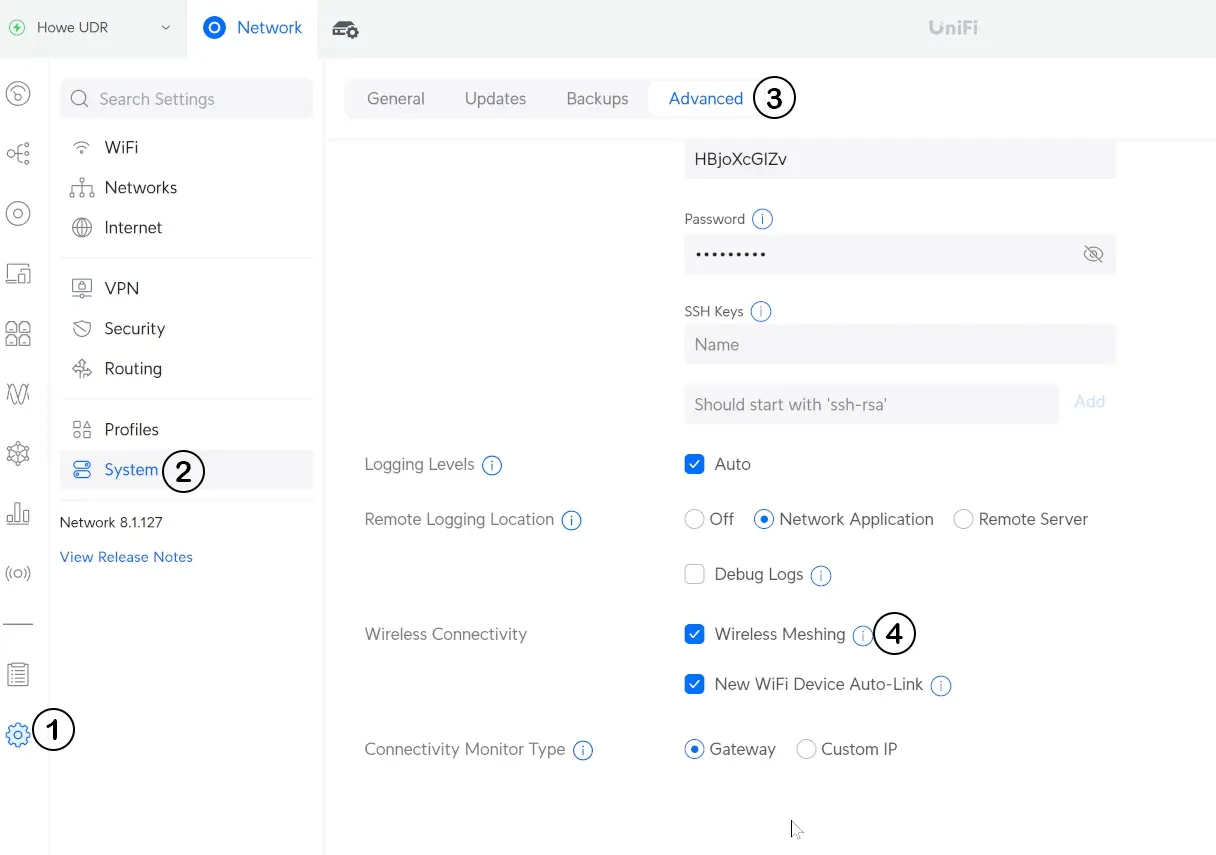
Meshing in a network can be disable simply by using these steps
- Login to the Access Point controller
- 1: Settings > 2: System > 3: Advanced > 4: Wireless Meshing
- Uncheck the Wireless Meshing option.
- Apply and save.
This will disable Wireless Meshing in the global configuration, and the same change will be applied to all the Access Points connected in that network.
Conclusion
What is Meshing
A mesh network is formed when one Access Point (the parent) connects to another (the child) wirelessly. The system dynamically finds the nearest and most efficient path back to the router, which may or may not be through the original parent AP.
However, problems arise when an Access Point is connected in two ways at once, via both a physical cable and as part of the wireless mesh. This creates a network loop, which directly causes instability, packet storms, and frequent outages.
The proper use case for mesh networking is when running a cable from a switch to an Access Point is impractical or impossible, but a power outlet is available. In these scenarios, meshing allows devices to connect through multiple wireless hops, extending coverage where wires cannot reach.
Reason for disabling the wireless meshing:
After disabling the Wireless Meshing, the Access Points no longer will get offline or experience performance drops. The Access Points will continue to provide strong Wi-Fi coverage, and both speed and response will improve.
When to use Mesh Networking:
Use mesh networking when running Ethernet cables from a switch is difficult or costly ideal for extending Wi-Fi across large spaces. Mesh systems are highly expandable in both size and coverage, making them a flexible solution.
Beyond just coverage, mesh provides seamless, single network Wi-Fi where traditional routers struggle. It’s perfect for businesses, smart homes with many devices, or anywhere you need reliable, self-healing connectivity without new cabling. Overall, mesh delivers better speed and stability compared to basic range extenders.
When not to use Meshing Networks:
When wired cables are available, it is better to use a wired connection, as it is more stable and faster than wireless meshing. For critical applications and infrastructure, a wired medium is also more reliable and accepted.
Wireless meshing can introduce additional latency and instability. In small setups like at home or in a small office, using mesh can also unnecessarily complicate what should be a simple network.
Wireless meshing is a powerful technology that enables network expansion in environments where wired connectivity is not feasible. It offers flexibility, self-healing capabilities, and extended coverage, making it an excellent choice for large areas, smart homes, and any location where running Ethernet cables is difficult or expensive.
However, when Access Points have both wired and wireless mesh connections enabled simultaneously, it creates network loops. This leads directly to instability, performance degradation, and frequent device disconnections. In these wired setups, disabling wireless meshing becomes a critical best practice to restore a stable, high-performance network. By turning off meshing where reliable wired connections already exist, organizations can ensure significantly better speed, consistency, and overall reliability.
Need more help with your UniFi setup or have other network challenges?
The experts at FSI Information Technology are here to help. Whether you’re troubleshooting meshing issues, designing a secure network, need ongoing IT support or IT AMC Services in Dubai, we provide reliable, professional solutions tailored to your business.
Contact FSI Information Technology in Dubai today for a consultation and ensure your network is optimized for performance and stability.
